ContextClip paste formats
ContextClip does not log into any of those products. It writes a bundle on disk and puts a carefully chosen payload on the clipboard. Each host reads the clipboard differently. That is why Settings → Agents → Advanced has a Pasteboard format, and why the same capture can arrive in three different shapes:
- Picture in the chat — the host accepted the image from the clipboard.
- Text in the chat — the host kept the accessibility summary and file paths you pasted.
- @ file — the host saw a file on the clipboard and attached
capture1.md(and sometimes the PNG) from your Mac.
Local agents can also open the files after the fact: they are already on disk in
~/Desktop/ContextClip-latest, or in ~/Library/Caches/ContextClip/latest if you turned
the Desktop shortcut off (see
Where the files are). Cloud chats that
cannot read your disk need the inline path — picture and/or tree text. File paths alone
will not help them.
The short version
| Agent | Pick this format | What the agent gets |
|---|---|---|
| Claude Code | Claude Code v2 | Image plus text, no file reference |
| Cursor | Cursor v2 | @capture1.md plus text |
| Codex | Cursor v2 | @capture1.md plus text |
| ChatGPT Classic | Paste To → ChatGPT Classic | One file plus the picture, in one paste |
| Cloud chats | Text tree or Screenshot only (capture mode) | Accessibility JSON, or pixels |
You pick the target once in Settings → Agents; the shortcut stays the same. A fresh install starts on Claude Code with the Claude Code v2 format.
Claude Code
Recommended: Pasteboard format → Claude Code v2.
Claude’s desktop chat prefers an image + the text of the capture in one paste. If a
file URL is also on the clipboard, Claude turns the paste into @capture1.md and often
throws away the rest of the text.
| What you choose | What you should see after ⌘V |
|---|---|
| Claude Code v2 (default) | Picture in the thread + accessibility text and paths. No @ needed. |
| Claude Code v1 | Picture + @capture1.md (Claude reads the file). Fallback. |
| Text tree | Full accessibility JSON as text. No picture. |
| Screenshot only | Picture + a short caption. |
If something looks empty, @~/Desktop/ContextClip-latest/capture1.md still works — the
files are already on disk.
Cursor
Recommended: Pasteboard format → Cursor v2.
Cursor’s chat does not treat the clipboard the same way Claude does. The Claude-style “image + text” package, and Cursor v1 (two file URLs), both arrive as the picture only. The tree never reaches the agent.
Cursor v2 puts one file on the clipboard. After ⌘V you should see @capture1.md; the
agent reads the capture (screenshot path + accessibility). Do not use Cursor v1.
If the paste is only an image, mention @~/Desktop/ContextClip-latest/capture1.md in the
chat input.
Codex
Recommended: the same as Cursor — Cursor v2.
Codex is local. With Cursor v2 it receives @capture1.md and can read the PNG and JSON
from the paths in that file. If the thread is thin, point at
~/Desktop/ContextClip-latest/capture1.md yourself.
Do not use Text tree as the Codex default — Text tree is for agents that cannot open your disk.
ChatGPT Classic
Recommended: Paste To → ChatGPT Classic. It picks the pasteboard format by itself: one file plus the picture in a single paste.
ChatGPT Classic keeps every attachment of a chat and renames repeats to capture1(2).md,
capture1(3).md, and so on. Turn on Settings → Capture → Unique file name and each
capture arrives as ContextClip-<date>-<time>.md instead, so the list stays readable.
The name is unique to the second. It changes nothing for Claude Code v2: that format
attaches no file at all and sends the path as text.
Other agents and cloud chats
Use Text tree for the accessibility JSON, and Screenshot only if they need pixels.
They cannot follow ~/Library/… paths.
The full list
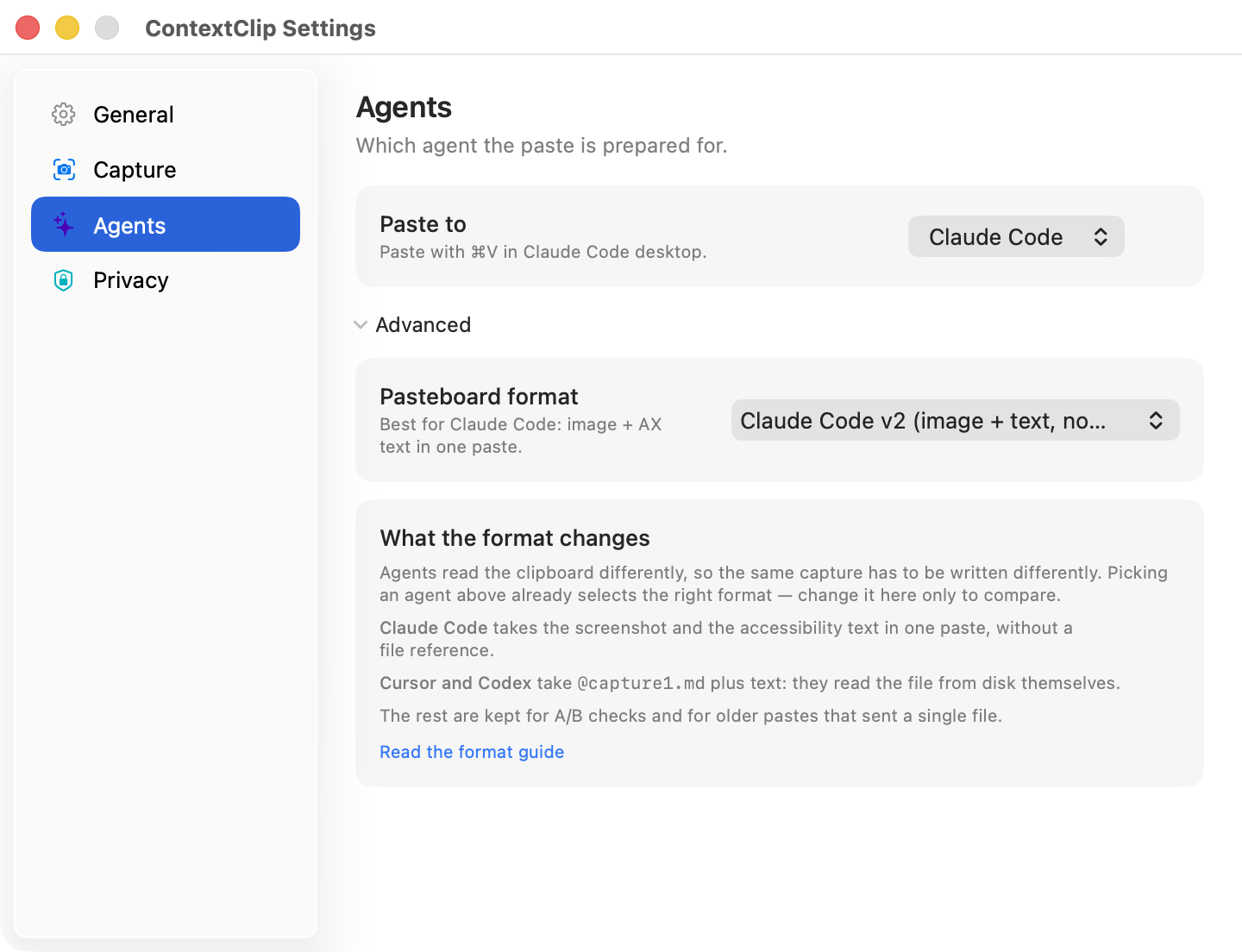
Settings → Agents → Advanced holds seven formats. Three of them are in use — Claude Code v2 (the default), Cursor v2, and the one behind ChatGPT Classic. The other four are diagnostic: they exist so a thin paste can be narrowed down to the host rather than to the capture, and they are listed here only so the menu is not a surprise.
- Claude Code v1 (2 files + image)
- Claude Code v2 (image + text, no @file)
- Experiment A (2 files, no image)
- Experiment B (1 file + image) — what ChatGPT Classic selects
- Cursor v1 (2 files, no image)
- Cursor v2 (1 file + rich text)
- Legacy (1 file only)
When a paste arrives thin
If the agent only saw a picture, you are probably on the Claude v2 format inside Cursor (or on Cursor v1). Switch to Cursor v2.
If a paste into your usual agent is thin or noisy, that is a product bug — tell us through Send Feedback in the menu, which opens the contact form on noteifyapp.com, or by writing to [email protected]. Four answers make it fixable:
- Which agent (Claude Code desktop / Cursor / Codex / ChatGPT Classic / other)
- Capture mode and paste format
- What arrived (image / @file / text / nothing)
- Whether region or the whole window would have been better