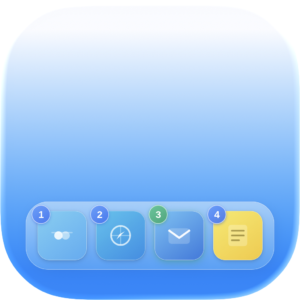
Quick Dock Icon

Quick Dock

Instant app switching from your keyboard. Your Dock. Faster.

Take control of your Dock with numeric shortcuts.

Switch apps, hide them, or trigger App Exposé — all from your keyboard. No mouse needed, no interruptions.

Fast app switching: Press a modifier key (Option by default) and hit a number to activate or hide an app instantly.

Exposé at a glance: Press another modifier (Control by default) to see all windows of any app.

Simple setup: Grant Accessibility access once — then Quick Dock is ready to work.

How it works

1️⃣ Fast app switching

  • Press the modifier key (default: Option)

  • Numeric labels 1–9 and 0 appear on Dock icons

  • Pressing a number:

    • activates the corresponding app

    • hides it if it’s already active

2️⃣ Show all windows of an app

  • Press another modifier key (default: Control)

  • Numeric labels 1–9 and 0 appear on Dock icons
  • Pressing a number triggers App Exposé for the selected app (all windows of that app are displayed)

Instant switching between apps and windows — no mouse or trackpad required. Keyboard only.

Why use it?

Quickly switch between apps and view their windows directly from your keyboard — just like in Windows and Linux.

The idea was simple and practical, so I decided to bring it to macOS.

Take instant control of your workspace — no mouse or trackpad needed.

Permissions

At first launch, the app will request Accessibility access.

This is required to:

  • activate apps

  • manage their state

  • trigger App Exposé

Once granted, the utility is fully ready to use.

YouTube video

Download

Built natively for Intel & Apple Silicon. Requires macOS 14.6 or later.
Fully compatible with the latest version of macOS Tahoe.

Quick Dock and DockView 2

Quick Dock does one job and stays that way: numbers on your Dock, keyboard only, nothing else running. It is still sold and still supported — if you own it, nothing changes.

The numbering idea now also lives inside DockView 2 as Dock Shortcuts, next to window previews on hover, the ⌥⇥ window switcher and window layouts. If you want the whole set in one app, try DockView 2.

One thing to know: App Exposé on a second modifier is Quick Dock only. DockView does not have it. If that is the part you use, stay here.